
Privado Sentry is the antivirus solution included with select PrivadoVPN Premium plans and available as an optional add-on for others. Designed to work seamlessly with PrivadoVPN, it provides continuous protection against malware, unsafe applications, and system threats on Windows and Android devices.
What Privado Sentry Does
Privado Sentry combines real-time scanning and advanced behavioral detection to stop threats before they cause harm. It automatically checks apps, system files, and background processes for suspicious activity — and removes or quarantines harmful software to keep your devices running safely.
On Android, Privado Sentry is integrated directly into the PrivadoVPN app. On Windows, it’s a stand-alone application that installs alongside PrivadoVPN for full system protection.
Why Privado Sentry Matters
Modern threats target every layer of your system, from browsers to apps and background services. Privado Sentry actively monitors for these risks and works with PrivadoVPN’s Control Tower tools to keep your devices and data protected.
When combined with features like Threat Prevention, Ad Blocker, and Secure DNS, it forms a complete defense system against phishing sites, trackers, and malicious software.
Key Features
- Real-Time Threat Monitoring: Constantly scans for malware, spyware, and other harmful software.
- Behavior-Based Detection: Uses intelligent analysis to identify new and evolving threats.
- Lightweight Design: Protects without slowing down your system.
- Cross-Device Security: Built into the Android app and available as a full Windows antivirus client.
- Easy Management: Manage Sentry and other security tools through PrivadoVPN Control Tower.
How to Set Up Privado Sentry
On Android:
- Run a Quick Scan, Custom Scan, or Full Scan whenever you want to check your device.
- Open the PrivadoVPN app and sign in to your Premium account.
- Tap the Sentry tab at the bottom of the main screen.
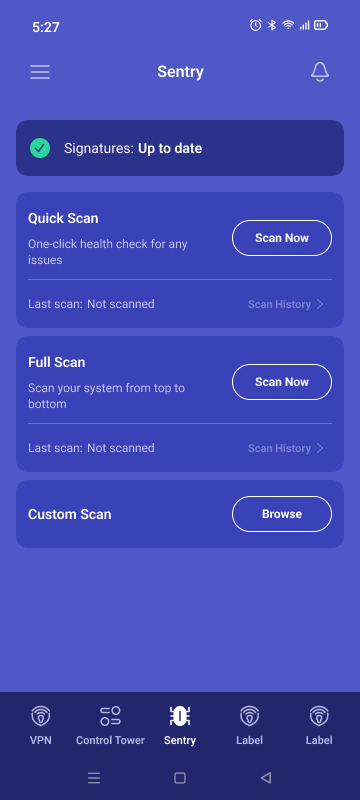
On Windows:
- Once installed, Sentry will begin scanning automatically and notify you of any detected threats.
- Open the Privado Sentry installer from your PrivadoVPN account page.
- Follow the setup instructions to install the antivirus.
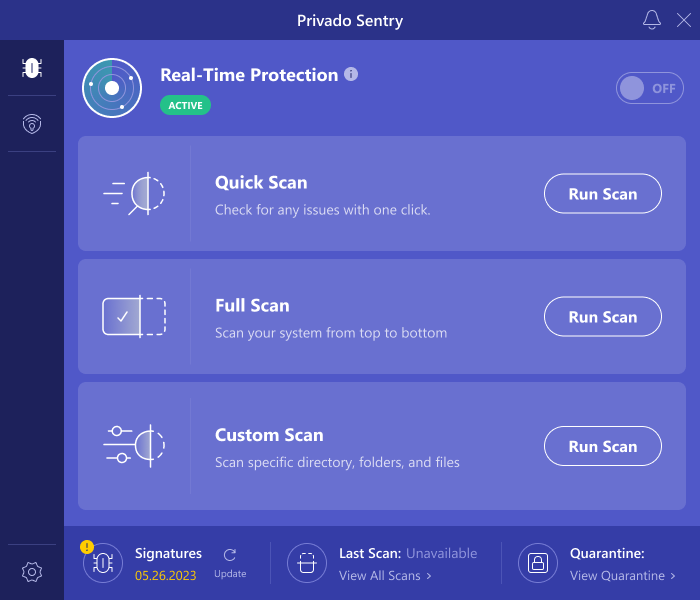
Combine Sentry with Full Control Tower Protection
For the strongest defense, use Sentry alongside other Control Tower tools:
- Threat Prevention – Blocks dangerous domains.
- Ad Blocker – Removes intrusive ads and tracking scripts.
- Secure DNS – Routes requests through encrypted DNS servers.
- Parental Controls – Restricts access to adult or unsafe sites.
These layers work together to prevent infections, block risky sites, and reduce online exposure.
Included with Premium Plans
Privado Sentry is automatically included with PrivadoVPN’s top Premium plans and can be added to other plans for expanded device protection. Together, PrivadoVPN and Sentry provide security that covers both your Internet connection and your device itself.
Upgrade to Premium for Full Protection
Privado Sentry is part of the most complete online protection suite PrivadoVPN offers. Upgrade to a Premium plan to activate antivirus protection, unlock full Control Tower features, and safeguard all your devices from digital threats.