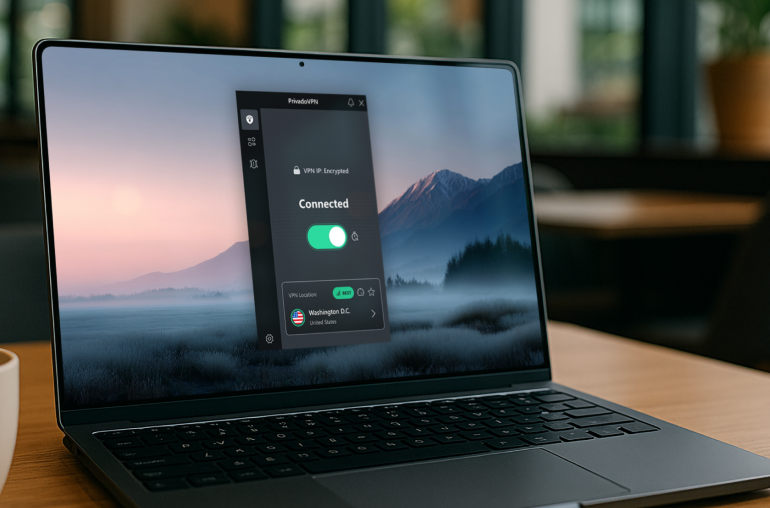
If you’re looking for an easy way to protect your online privacy, setting up PrivadoVPN on Windows is one of the simplest ways you can secure your activity from prying eyes. If you’re using Windows 10 or Windows 11, this guide will walk you through the full setup process from installation to connection.
PrivadoVPN is a user-friendly and powerful VPN that offers strong encryption and a wide range of features to keep you safe, including smart DNS tools, threat protection, and much more.
Ready to get started? Follow along as we setup and connect to PrivadoVPN on Windows.
Step 1: Create Your PrivadoVPN Account
Before you install the Windows app for PrivadoVPN, you’ll need to create an account. Click here to set one up in seconds.
We recommend the PrivadoVPN premium subscription, which helps you unlock the full potential of our service. Premium users receive unlimited data each month for uninterrupted privacy, support for up to 10 simultaneous connections on a single account, and powerful built-in tools like an ad blocker and threat protection that gives you the performance, flexibility, and protection you need for everyday use.
If you’ve already created your PrivadoVPN account, keep your credentials handy as we move to the next step.
Step 2: Install PrivadoVPN on Windows
Follow these steps to begin the installation process.
- Visit the official PrivadoVPN website.
- Click on ‘Software’ from the upper navigation menu.
- From the dropdown menu, select ‘PrivadoVPN for Windows’.
- Click the button at the top that says ‘Download PrivadoVPN for Windows’.
- Open the installer file once it finishes.
- Follow the on-screen installation prompts.
Once the app has been installed on your Microsoft Windows computer, proceed to step 3.
Step 3: Log Into the PrivadoVPN Windows App
Now that installation has been completed, it’s time to sign in and begin protecting your device with the power of PrivadoVPN.
- Double click the PrivadoVPN icon on your desktop, or in your start menu.
- Launch the PrivadoVPN Windows app.
- Enter your email address or username, enter your password, and click ‘Log In’.
- Toggle the homescreen slider from ‘Disconnected’ to ‘Connected’.
– OR – - Select a specific location from the server list and click to connect.
Once you’re connected, your Internet traffic is securely encrypted and your IP address is masked to enhance your online protection. You can see your updated IP address on the main app screen.
Step 4: Adjust Optional Settings (Recommended)
You’re all set up and ready to get the most out of your PrivadoVPN experience. If you’re looking for a way to give yourself more peace of mind, consider the following settings that are available by clicking the ‘Settings’ button on the menu located on the left side of the app:
- Setup Auto Connect to access your preferred server the moment the app opens
- Establish your preferred protocol settings based on your speed and security needs
- Turn on SmartRoute to activate split tunneling and control how your connection is configured
- Select the Auto Start setting to ensure the PrivadoVPN app launches automatically when you computer turns on
- Activate the Kill Switch feature which prevents your IP address from being exposed if your VPN connection suddenly drops
How to Confirm Your VPN is Working
Now that you’ve connected your Windows device to PrivadoVPN and encrypted your connection, you’ll want to confirm that everything is working properly. There are a few ways to do this.
First, check the main area of the PrivadoVPN app to see if it says ‘Connected’. Next, check your IP address to verify that it has been updated to a different IP that doesn’t match the one normally associated with your device. If your IP address is different than it traditionally is, your secure connection is working as it should.
Why Use PrivadoVPN on Windows?
PrivadoVPN stands out as a top VPN for PC users by offering an array of features that set us apart from standard security tools, including:
- User-friendly interface
- Quick installation process
- One-click connection
- Fast and reliable servers
- The highest encryption
- Ad blocking and threat protection
- Split tunneling and smart DNS tools
- Up to 10 connections from one account
Whether you’re working remotely, browsing on public Wi-Fi, or simply improving your digital privacy, PrivadoVPN makes securing your Windows device easy.
Get PrivadoVPN on Your Windows Computer Today
Setting up PrivadoVPN on Windows 10 or Windows 11 devices is fast and simple, even if you’ve never used a VPN before.
With our VPN’s simple interface and powerful privacy features, PrivadoVPN makes it easy to protect your IP address and encrypt your traffic without technical hassle.
Don’t miss your chance to get the online protection and security you deserve. Get PrivadoVPN for your Windows device now and take back control of your digital privacy.