PrivadoVPN Premium gives you full control over how your VPN behaves. You can adjust everything from your preferred protocol and language to Split Tunneling settings and favorite servers. Here’s how to make PrivadoVPN fit your exact needs.
Choose the Right Protocol
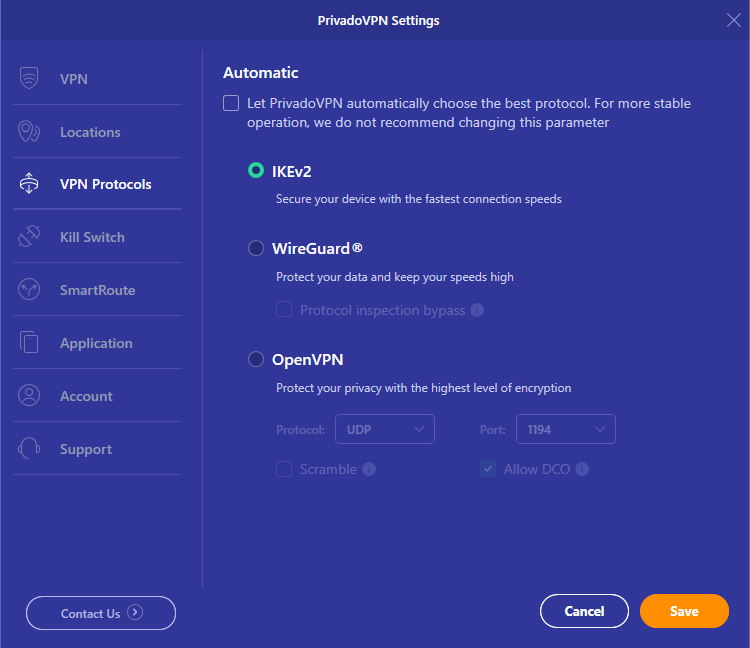
PrivadoVPN supports multiple VPN protocols so you can balance speed and security. OpenVPN offers robust protection and is ideal for most users, while IKEv2 provides faster connections and stability for mobile devices. To change your protocol:
- Open the PrivadoVPN app.
- Go to Settings > VPN Protocols.
- Deselect “Let PrivadoVPN automatically choose the best protocol…”, then choose OpenVPN, WireGuard®, or IKEv2.
For maximum performance, try both options and see which provides the fastest connection for your location.
Set Auto-Connect Options
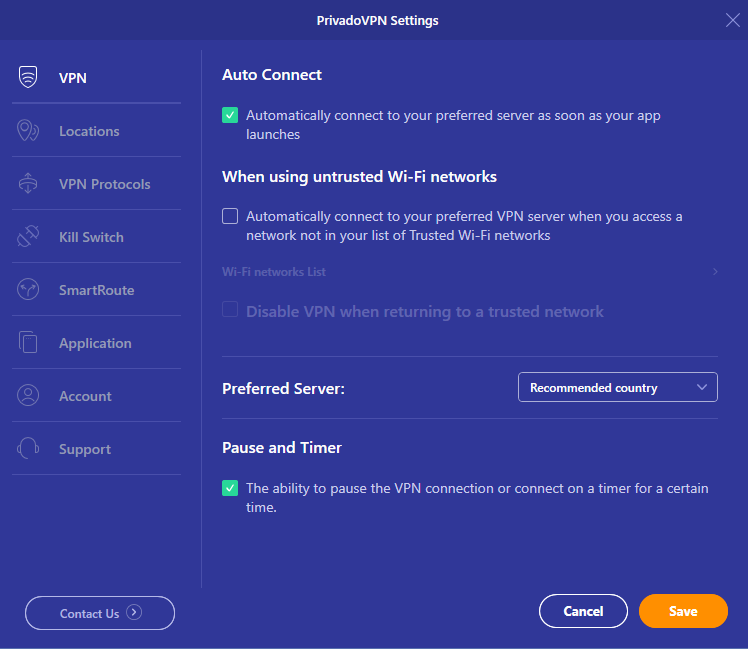
If you want PrivadoVPN to automatically connect whenever you go online, turn on the Auto Connect feature. This is especially useful when switching Wi-Fi networks or traveling. To enable it:
- Go to Settings > VPN.
- Toggle Auto Connect on.
- Choose your preferred server location if you always want to connect through the same region.
Save Favorite Server Locations
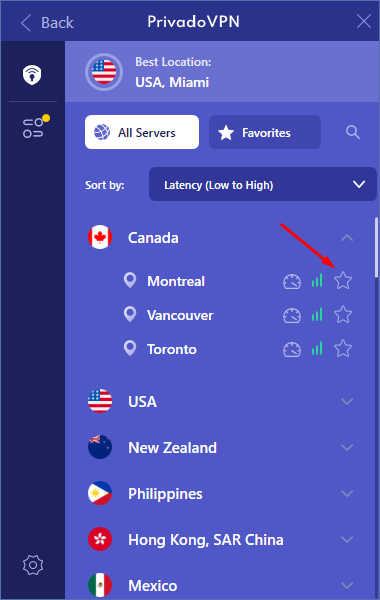
You can mark specific servers as favorites for quick access. This is helpful if you frequently connect to a few preferred regions.
- Access your favorites anytime from the Favorites tab for faster connections.
- On the main screen, open the Server List.
- Tap the Star icon next to the cities you want to save.
Use Split Tunneling for Split Tunneling
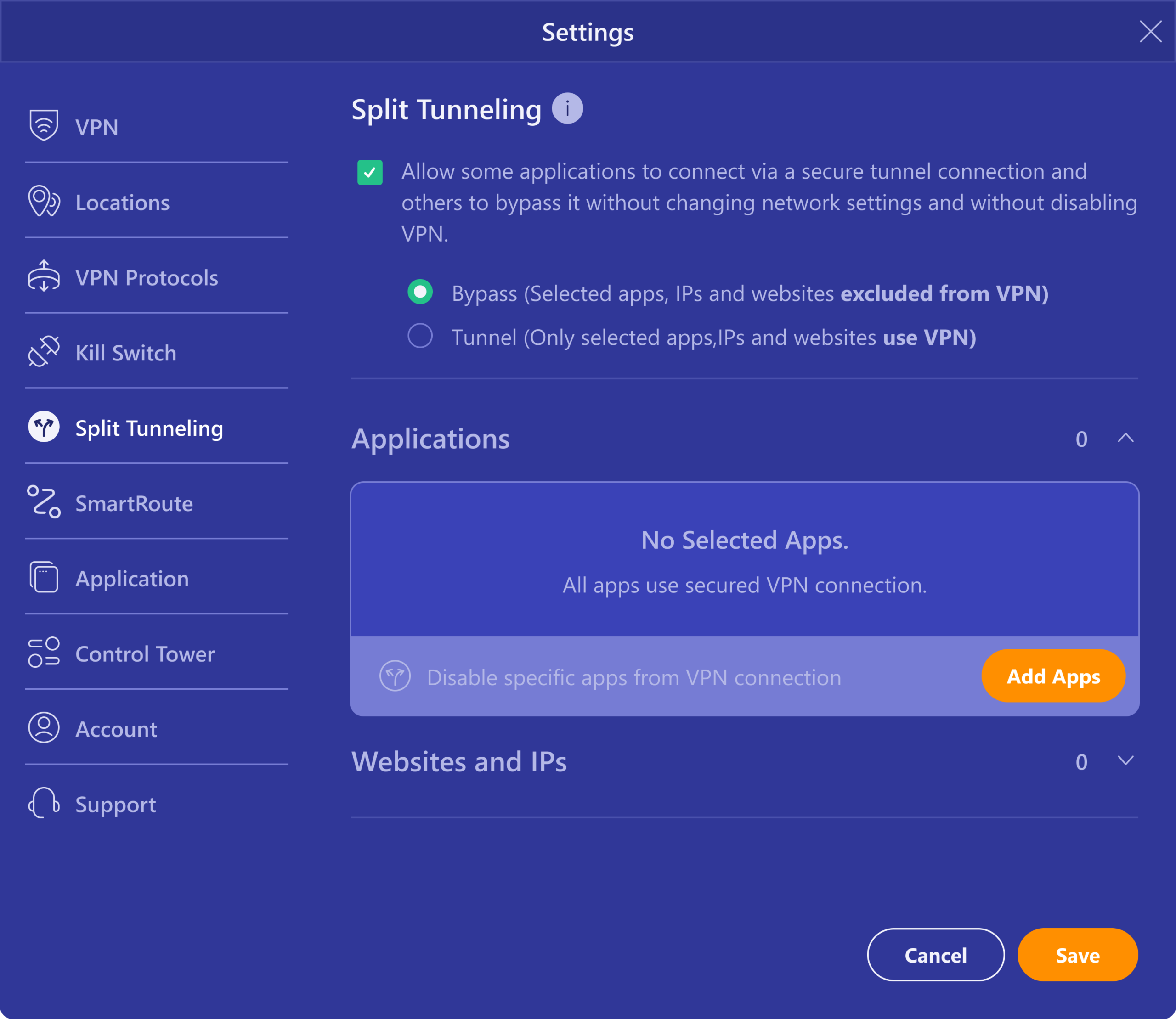
Split Tunneling allows you to decide which apps use the VPN connection and which don’t. This gives you greater control over speed and privacy.
- Open the app and go to Settings > Split Tunneling.
- Select the “Allow some applications to connect via a secure tunnel connection…” box.
- Add specific apps to either the Bypass or Tunnel list.
- Save your settings, and PrivadoVPN will apply your choices automatically.
Change Your App Language
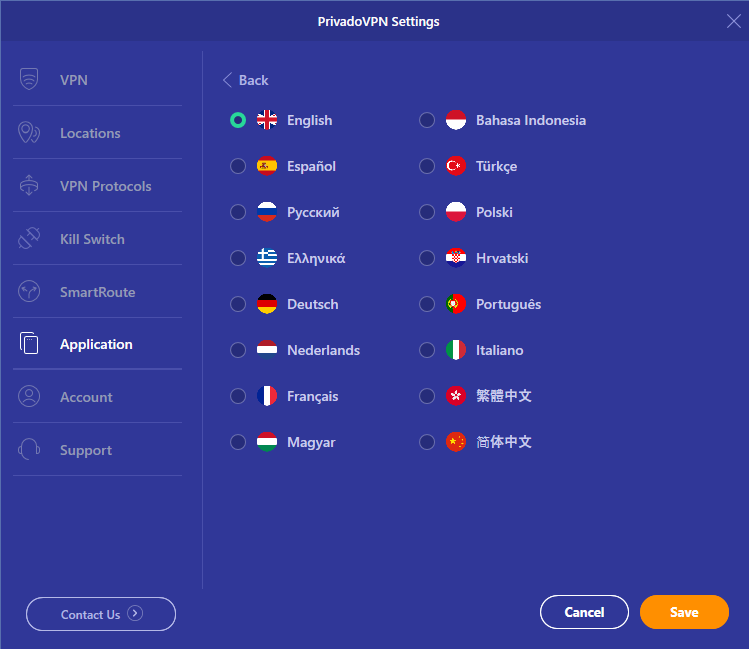
PrivadoVPN supports multiple languages so you can use the app comfortably in your preferred one.
- Go to Settings > Application.
- Tap Application Language and select your desired option.
- Restart the app to apply your new language settings.
Fine-Tune Your Experience
In addition to these settings, you can also:
- Enable Kill Switch to prevent Internet access if the VPN disconnects.
- Turn on Threats in Control Tower to block malicious sites.
- Combine Split Tunneling and Auto-Connect for optimized privacy and convenience.
PrivadoVPN Premium gives you the flexibility to tailor every part of your VPN experience. Take a few minutes to customize these settings, and you’ll have a secure and efficient setup that fits your daily habits.